

Operator console
A web console for watching your station and taking quick actions. It is built into the program, so turning it on is a config change. It is off by default, except when you installed with the install script, which turns it on and generates the password.
Turn it on
With the install script, run qc console on (and qc password to see the sign-in). qc console on --status-page also publishes the small public status page. By hand, write this:
[ui]
enabled = true
mode = "private"
username = "admin"
password_file = "secrets/ui-password"
You can write the table as [console] instead of [ui]; they are the same. The password needs at least 15 characters; very simple ones are refused.
openssl rand -base64 24 > secrets/ui-passwordStart Quikcast and open /console on either address:
http://127.0.0.1:9090/console(the admin address, the safest place to use it)https://your-server/console(the public address, if you have HTTPS)
Use HTTPS if the console is reachable from the internet
Sign-in cookies are Secure by default, so browsers send them only over HTTPS. Localhost is fine. For throwaway testing over plain HTTP elsewhere, set secure_cookie = false.
Pages
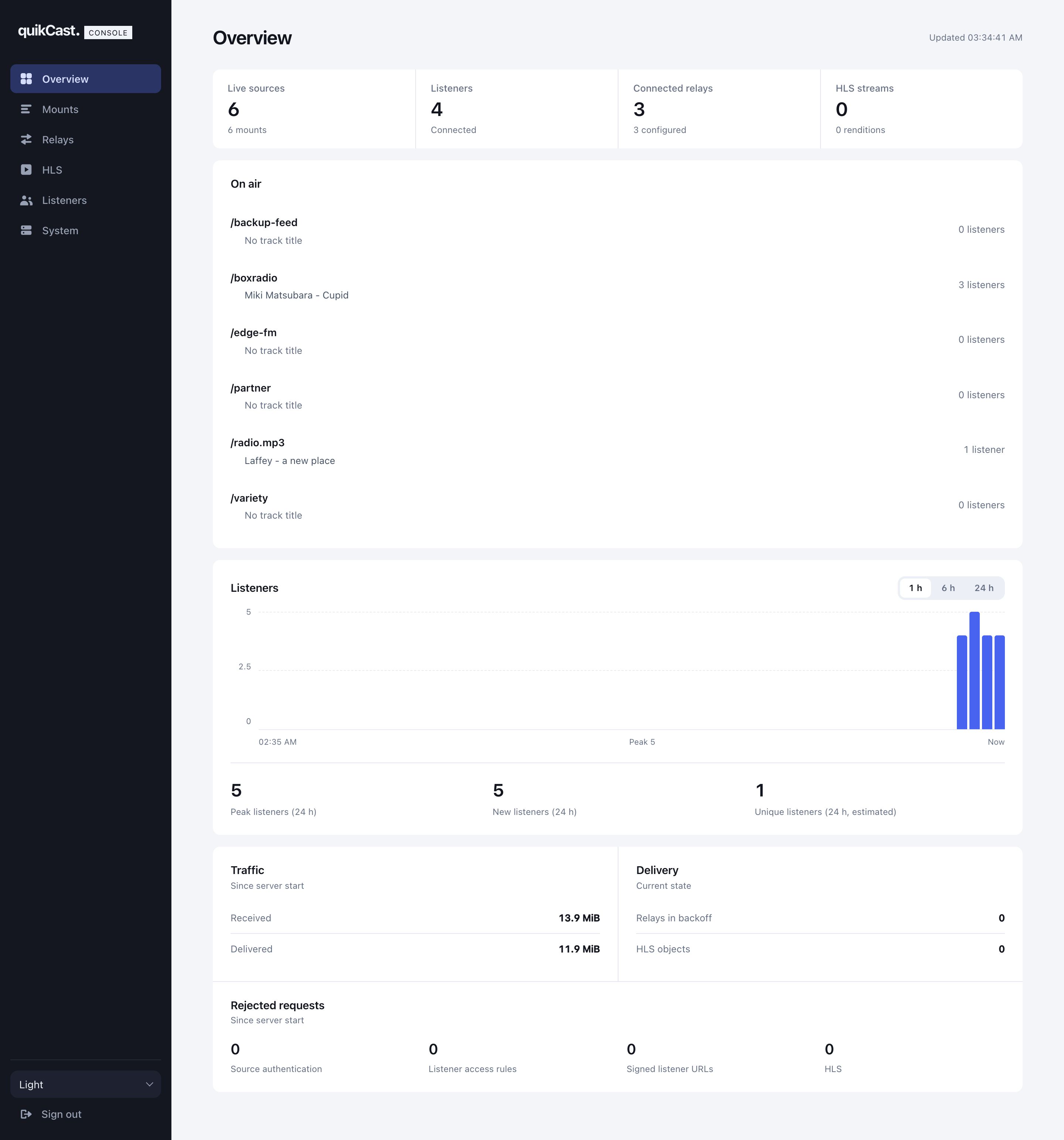
Overview shows live sources, listeners, relays and HLS streams, every live mount with its track title, and a listener chart for the last hour, 6 hours or 24 hours. The chart comes from the in-memory listener history, so it resets on restart. The Listeners count includes estimated directory HLS listeners. A notice appears at the top only when the server has stopped accepting connections or is shutting down.
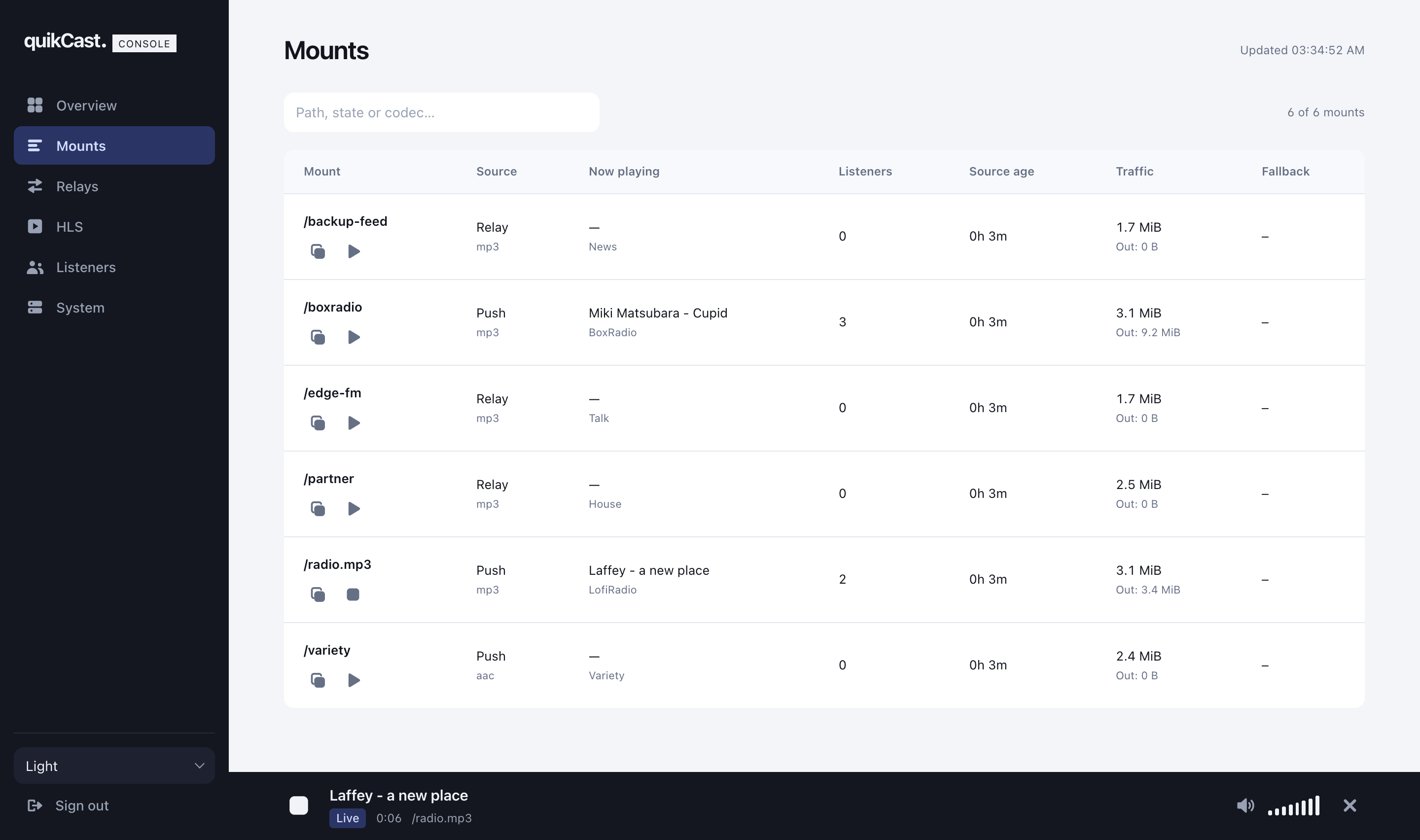
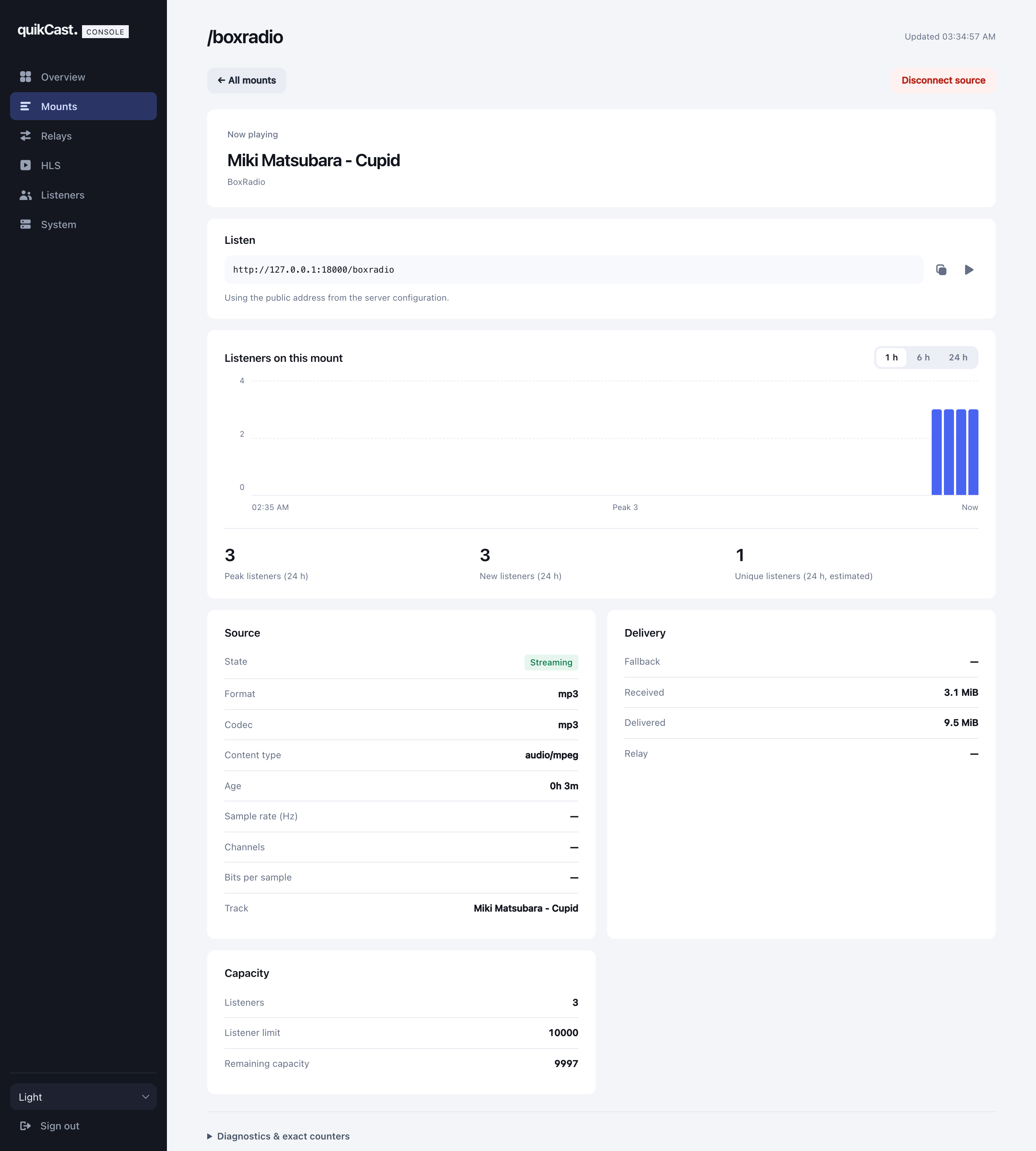
Mounts lists every stream with its source, now-playing title, listeners, traffic and fallback. Each row has copy and play icons. Open a mount for its track, listen address, listener chart, source and capacity details, and a Disconnect source action.
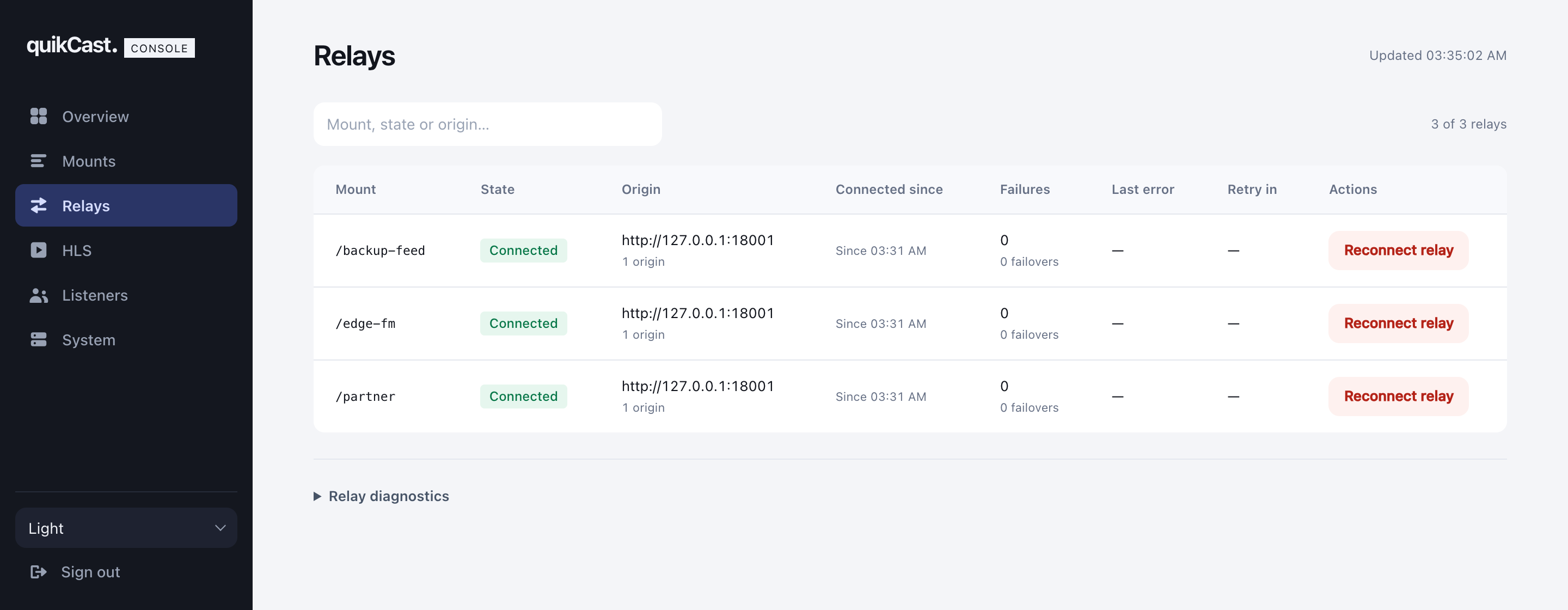
Relays shows each relay's state, origin, failures and last error, with a Reconnect relay action. Open Relay diagnostics for the full per-relay details.
HLS lists streams published to Quikcast and directory streams. Pick an ingested stream to see its renditions, or a directory stream to see its listener sessions.
Listeners shows who is connected to one mount, 100 at a time. Directory HLS streams are in the same list as "HLS name", with their estimated sessions. Info opens that listener's exact values; Disconnect drops them.
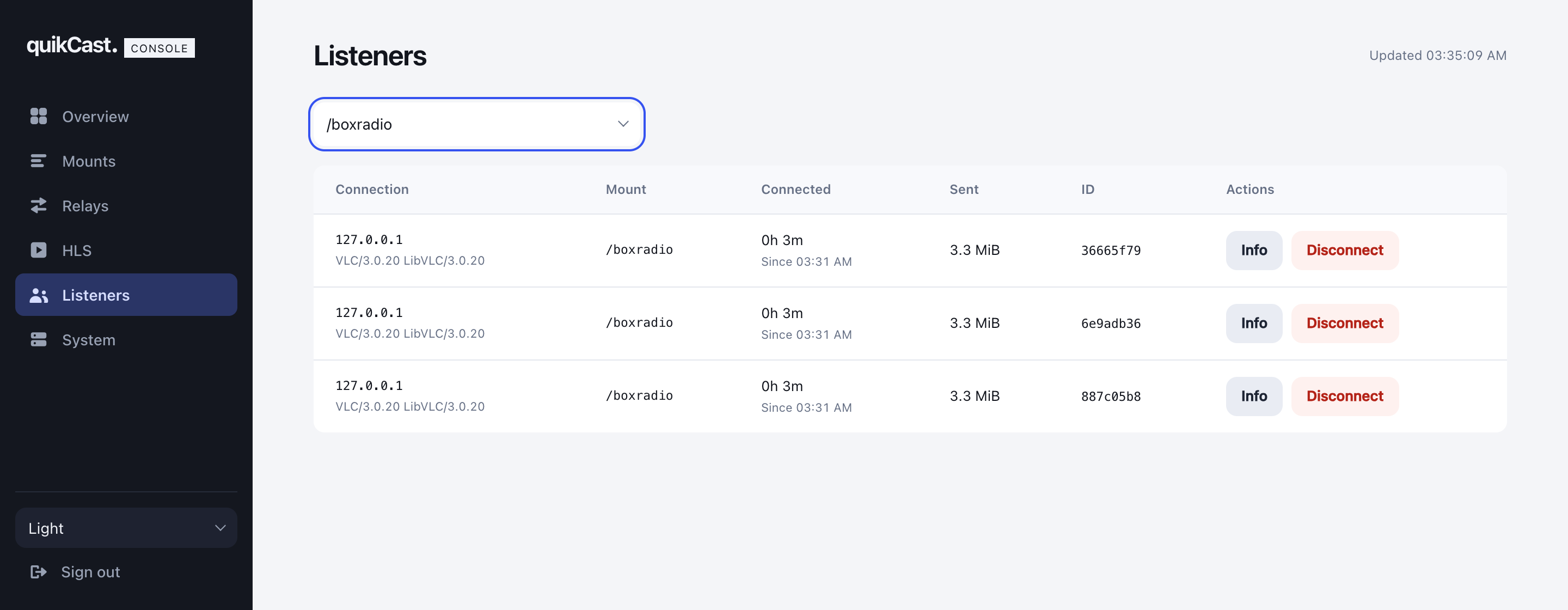
System shows server details and Stop accepting connections. That is draining: it is one-way, and the server accepts connections again only after a restart.
Disconnecting a source or listener, reconnecting a relay and stopping connections each ask for confirmation. Configuration, passwords and HLS publishing are not in the console on purpose.
The page refreshes every three seconds while visible. Your time range, filters and theme stay put.
Test-play a stream
The play icon starts the stream in a player bar at the bottom of the console. It keeps playing as you move between pages. While a mount plays, its play icon becomes a stop icon. The bar has its own stop and play button, a volume meter and a close button.
- The audio goes from your public listener straight to your browser, and your browser must support the format (MP3 and AAC are safest).
- You count as a listener, so you appear in the listener lists and your access rules apply.
- Streams protected by signed links cannot be played here, and a mount with no source and no fallback has nothing to play. The icon is disabled and its tooltip says why.
Copy the right address
The console guesses the public address from the page you are on and the listen port. Behind a reverse proxy, a CDN or another domain, set it:
[ui]
public_url = "https://radio.example.com"
Behind a path prefix
If a trusted reverse proxy serves the console under a sub-path and strips it (for example /28000/console forwarded as /console), it should send X-Forwarded-Prefix: /28000. See HTTPS and proxies. The header is honoured only from addresses in [trusted_proxies].
Light and dark theme
The theme menu above Sign out, and in the corner of the status page, switches between System, Light and Dark. System follows your operating system. The choice is remembered in your browser.
Public status page
A small "is the station live?" page anyone can see, served at /:
[ui]
enabled = true
mode = "public"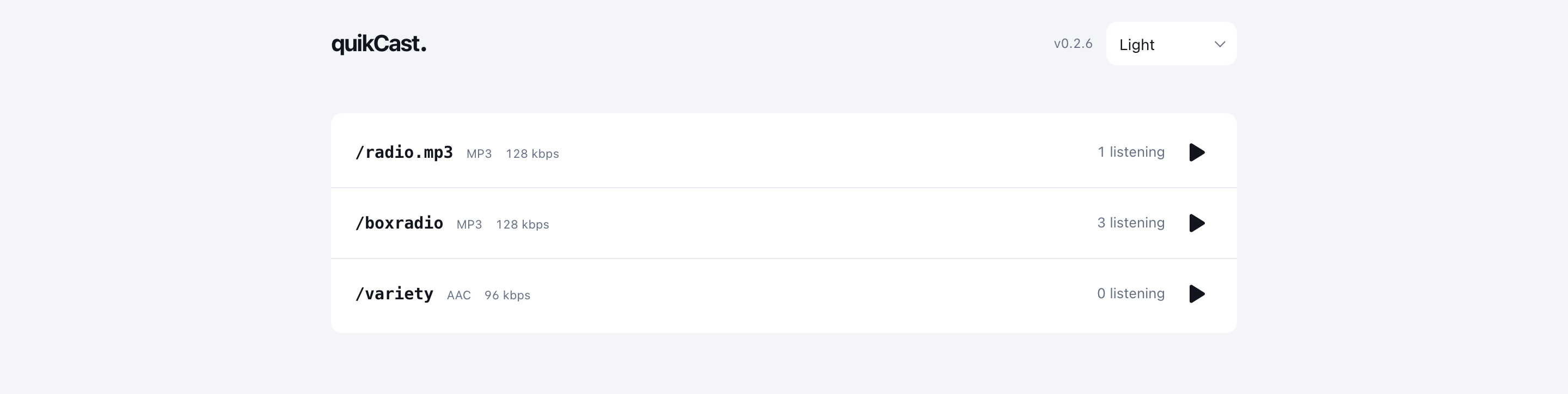
It lists every mount by default, including streams that encoders create on the fly with dynamic mounts. To show only some, name them: public_mounts = ["/radio.mp3"] (configured mounts only), or public_mounts = [] to show none. Each live stream shows its codec, the bitrate if the encoder announces one, and how many people are listening (a mount can opt out with hide_listener_count = true). An offline stream appears muted. There are no IP addresses, settings, controls or sign-in, and the server version is shown in the header.
Each live stream has a Play button that becomes Stop while it plays. One stream plays at a time, with no player bar. The link it plays comes from public_url when set.
/console/status returns the same information as JSON, in every mode and without signing in, so you can feed a status widget on your website. It also includes public_url, listen_port and tls.
Status page and console together
mode = "both" serves the status page at / and keeps the sign-in console at /console:
[ui]
enabled = true
mode = "both"
username = "admin"
password_file = "secrets/ui-password"
The console used to be at /ui. That address, and everything under it, now redirects to /console, so old bookmarks and widgets keep working.
Sign-in protection
- One operator account, separate from the encoder and management credentials.
- Sessions last one hour by default (
session_duration), counted from sign-in and kept in memory, so a restart signs everyone out. - Five attempts per second per address, with protection against bursts.
- Changing the password, username or mode signs everyone out after the next reload.
Reload and updates
Console settings reload with the rest of the config (kill -HUP). The console is part of the binary, so updating it means installing a newer Quikcast.